> ## Documentation Index
> Fetch the complete documentation index at: https://docs.usefusion.ai/llms.txt
> Use this file to discover all available pages before exploring further.
# Viewing Quest Data
> Explore participants, collected datasets, and schedule/compliance state from your quest workspace.
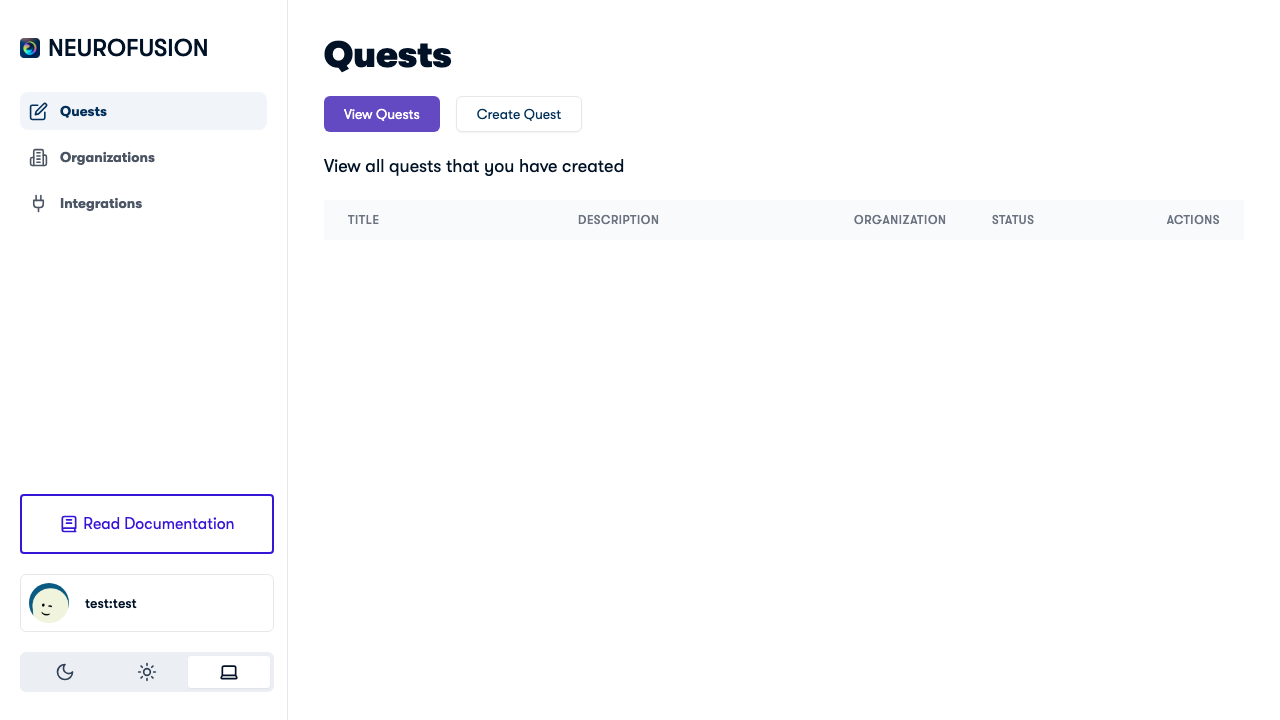
Once participants start joining your quest and submitting data, you can monitor and explore everything from the **quest detail page**. Navigate there by clicking on a quest from the quests list.
 ## Quest Detail Page Overview
The quest detail page shows:
* **Quest title, description, and status** (Draft, Published, or Unpublished)
* **Action buttons** for publishing, sharing, downloading, refreshing data, and opening participant operations
* **Schedule & Compliance** for a selected cohort, including baseline / follow-up offsets and due-state summaries
* **Participants page** for participant roster, cohort assignment, and lifecycle updates
* **Participant responses table** listing every data submission across all data types
## Data Types
All submissions are displayed in a single **Participant Responses** table with four columns:
| Column | Description |
| ------------- | ---------------------------------------------------------------------- |
| **User** | The participant's unique identifier (user GUID) |
| **Type** | The kind of data submitted (see below) |
| **Timestamp** | When the data was submitted, formatted as `YYYY-MM-DD HH:mm:ss` |
| **Value** | The response content — displayed inline or with a **View data** button |
The table combines the following data types:
| Type | Description |
| ---------------------- | ---------------------------------------------------------------------------------------------------------------------------- |
| `prompt_responses` | Answers to recurring prompts (surveys). The value contains the participant's response text or selection. |
| `onboarding_responses` | Answers to onboarding/screening questions submitted when the participant joined the quest. |
| `experiment_trials` | Results from jsPsych experiments. Stored as JSON in blob storage — click **View data** or **Download** to access. |
| `brain_recordings` | EEG recordings from Neurosity Crown or Muse devices. Stored in blob storage — click **View data** or **Download** to access. |
| `health` | Steps, sleep, and heart-rate data collected from integrated health sources. |
Health data (steps, sleep, heart rate) is displayed separately in a **graph view** when available, with a category selector to switch between metrics.
## Viewing Individual Responses
### Prompt & Onboarding Responses
For `prompt_responses` and `onboarding_responses`, click the **View data** button in the Value column. A viewer panel opens below the action bar showing the response as formatted JSON.
### Experiment Trials & Brain Recordings
For `experiment_trials` and `brain_recordings`, each row shows:
* **Dataset name** — the experiment name or recording type (e.g., *"Stroop Task"* or *"EEG Recording"*)
* **View data** — opens the data in an inline viewer panel
* **Download** — downloads the individual dataset as a JSON or CSV file
* **URL Parameters** (if present) — expandable section showing any URL parameters captured at submission time (e.g., Prolific IDs)
The downloaded file is named using the pattern:
```
{type}_{name}_{userGuid}_{timestamp}.{json|csv}
```
## Dataset Viewer
When you click **View data** on any response, a viewer panel appears showing:
* **Header** — the data type and a truncated user GUID for context
* **Content** — the full response data rendered as formatted, syntax-highlighted text
* **Close** button to dismiss the viewer
The viewer supports both JSON and plain-text content. For experiment trials and brain recordings, the data is fetched from blob storage on demand.
## Downloading All Data
Click the **Download Dataset** button in the action bar to export **all** quest data as a single CSV file.
The CSV contains the following columns:
| Column | Description |
| ----------- | ----------------------------------------------------------------------- |
| `userGuid` | Participant identifier |
| `questGuid` | Quest identifier |
| `timestamp` | Unix timestamp of the submission |
| `type` | Data type (e.g., `prompt_responses`, `experiment_trials - Stroop Task`) |
| `value` | The full response value (JSON-encoded for complex data) |
For experiment trials and brain recordings, the `type` column includes the experiment or dataset name — e.g., `experiment_trials - Stroop Task` — so you can filter by experiment in your analysis tool.
The file is named `quest_{questId}_data.csv`.
## Participant Operations
Use **Manage Participants** to open the participant workspace for a quest. See [Managing Participants](/quests/managing-participants) for full documentation on the participants page, including:
* reviewing joined participants and their lifecycle status
* filtering by cohort and status
* updating participant status (enrolled → active → completed, etc.)
* assigning or removing cohort membership
* API reference for programmatic access
## Schedule & Compliance
The quest detail page also includes a compact **Schedule & Compliance** panel. Use it to:
* select a cohort
* save a **baseline** offset in days
* save a **follow-up** offset in days
* review whether each participant is `upcoming`, `due`, `overdue`, or `completed`
* mark baseline or follow-up as complete when needed
This panel is intentionally narrow today: it supports baseline and follow-up checkpoints rather than a full visit-calendar system.
## Health Data (Graph View)
If your quest collects health metrics (steps, sleep, heart rate), the page includes a **graph view** showing trends over the past week.
Use the **category selector** to switch between:
| Category | Metric |
| ---------- | ----------------------- |
| Steps | Daily step count |
| Sleep | Sleep duration |
| Heart Rate | Heart rate measurements |
Each participant's data is plotted as a separate series on the line chart.
## Vital User Mapping
If your quest is integrated with the Vital API for wearable data, a **Get Vital to Fusion User Mapping** button appears in the action bar. Clicking it downloads a CSV mapping Vital user IDs to NeuroFusion user GUIDs — useful for reconciling wearable data with participant identities.
## Refreshing Data
Click the **Refresh** button to reload all datasets from the server. This fetches the latest submissions without reloading the entire page.
## Next Steps
Full lifecycle guide including monitoring and export.
See the participant flow from onboarding to submitted datasets.
Publish your quest and share it with participants.
## Quest Detail Page Overview
The quest detail page shows:
* **Quest title, description, and status** (Draft, Published, or Unpublished)
* **Action buttons** for publishing, sharing, downloading, refreshing data, and opening participant operations
* **Schedule & Compliance** for a selected cohort, including baseline / follow-up offsets and due-state summaries
* **Participants page** for participant roster, cohort assignment, and lifecycle updates
* **Participant responses table** listing every data submission across all data types
## Data Types
All submissions are displayed in a single **Participant Responses** table with four columns:
| Column | Description |
| ------------- | ---------------------------------------------------------------------- |
| **User** | The participant's unique identifier (user GUID) |
| **Type** | The kind of data submitted (see below) |
| **Timestamp** | When the data was submitted, formatted as `YYYY-MM-DD HH:mm:ss` |
| **Value** | The response content — displayed inline or with a **View data** button |
The table combines the following data types:
| Type | Description |
| ---------------------- | ---------------------------------------------------------------------------------------------------------------------------- |
| `prompt_responses` | Answers to recurring prompts (surveys). The value contains the participant's response text or selection. |
| `onboarding_responses` | Answers to onboarding/screening questions submitted when the participant joined the quest. |
| `experiment_trials` | Results from jsPsych experiments. Stored as JSON in blob storage — click **View data** or **Download** to access. |
| `brain_recordings` | EEG recordings from Neurosity Crown or Muse devices. Stored in blob storage — click **View data** or **Download** to access. |
| `health` | Steps, sleep, and heart-rate data collected from integrated health sources. |
Health data (steps, sleep, heart rate) is displayed separately in a **graph view** when available, with a category selector to switch between metrics.
## Viewing Individual Responses
### Prompt & Onboarding Responses
For `prompt_responses` and `onboarding_responses`, click the **View data** button in the Value column. A viewer panel opens below the action bar showing the response as formatted JSON.
### Experiment Trials & Brain Recordings
For `experiment_trials` and `brain_recordings`, each row shows:
* **Dataset name** — the experiment name or recording type (e.g., *"Stroop Task"* or *"EEG Recording"*)
* **View data** — opens the data in an inline viewer panel
* **Download** — downloads the individual dataset as a JSON or CSV file
* **URL Parameters** (if present) — expandable section showing any URL parameters captured at submission time (e.g., Prolific IDs)
The downloaded file is named using the pattern:
```
{type}_{name}_{userGuid}_{timestamp}.{json|csv}
```
## Dataset Viewer
When you click **View data** on any response, a viewer panel appears showing:
* **Header** — the data type and a truncated user GUID for context
* **Content** — the full response data rendered as formatted, syntax-highlighted text
* **Close** button to dismiss the viewer
The viewer supports both JSON and plain-text content. For experiment trials and brain recordings, the data is fetched from blob storage on demand.
## Downloading All Data
Click the **Download Dataset** button in the action bar to export **all** quest data as a single CSV file.
The CSV contains the following columns:
| Column | Description |
| ----------- | ----------------------------------------------------------------------- |
| `userGuid` | Participant identifier |
| `questGuid` | Quest identifier |
| `timestamp` | Unix timestamp of the submission |
| `type` | Data type (e.g., `prompt_responses`, `experiment_trials - Stroop Task`) |
| `value` | The full response value (JSON-encoded for complex data) |
For experiment trials and brain recordings, the `type` column includes the experiment or dataset name — e.g., `experiment_trials - Stroop Task` — so you can filter by experiment in your analysis tool.
The file is named `quest_{questId}_data.csv`.
## Participant Operations
Use **Manage Participants** to open the participant workspace for a quest. See [Managing Participants](/quests/managing-participants) for full documentation on the participants page, including:
* reviewing joined participants and their lifecycle status
* filtering by cohort and status
* updating participant status (enrolled → active → completed, etc.)
* assigning or removing cohort membership
* API reference for programmatic access
## Schedule & Compliance
The quest detail page also includes a compact **Schedule & Compliance** panel. Use it to:
* select a cohort
* save a **baseline** offset in days
* save a **follow-up** offset in days
* review whether each participant is `upcoming`, `due`, `overdue`, or `completed`
* mark baseline or follow-up as complete when needed
This panel is intentionally narrow today: it supports baseline and follow-up checkpoints rather than a full visit-calendar system.
## Health Data (Graph View)
If your quest collects health metrics (steps, sleep, heart rate), the page includes a **graph view** showing trends over the past week.
Use the **category selector** to switch between:
| Category | Metric |
| ---------- | ----------------------- |
| Steps | Daily step count |
| Sleep | Sleep duration |
| Heart Rate | Heart rate measurements |
Each participant's data is plotted as a separate series on the line chart.
## Vital User Mapping
If your quest is integrated with the Vital API for wearable data, a **Get Vital to Fusion User Mapping** button appears in the action bar. Clicking it downloads a CSV mapping Vital user IDs to NeuroFusion user GUIDs — useful for reconciling wearable data with participant identities.
## Refreshing Data
Click the **Refresh** button to reload all datasets from the server. This fetches the latest submissions without reloading the entire page.
## Next Steps
Full lifecycle guide including monitoring and export.
See the participant flow from onboarding to submitted datasets.
Publish your quest and share it with participants.